
How to Call Claude AI API from Microsoft Dynamics 365 Business Central
Yes, you can call the Claude AI API directly from Microsoft Dynamics 365 Business Central using AL customization. In this blog, we are going to show you exactly how to build a complete integration that sends a question or prompt from Business Central to the Claude AI model and displays the response — all using standard AL code and the HttpClient module.
This integration opens up powerful possibilities for Business Central users: auto-generate item descriptions, summarize customer history, assist with purchase decisions, validate entries using AI, and much more — all without leaving your Business Central environment.
In this tutorial, we will build a Setup Table to securely store the Claude API key and model configuration, a Codeunit that handles the HTTP request and JSON parsing, and an Action button on the Customer Card to test the integration live. We will also cover the complete AL code structure, permissions required, and all global variables used.
Prerequisites
Before starting, make sure you have the following ready:
- A Claude AI API Key from Anthropic — sign up at console.anthropic.com
- Visual Studio Code with the AL Language extension installed
- Microsoft Dynamics 365 Business Central (online or on-premises)
- Basic knowledge of AL Programming Language
Step 1: Enable HTTP Client Requests in app.json
By default, Business Central blocks outgoing HTTP requests for security reasons. To allow your AL extension to call the Claude API, you must enable the HTTP client in your app.json configuration file. Open your app.json file and add the following setting:
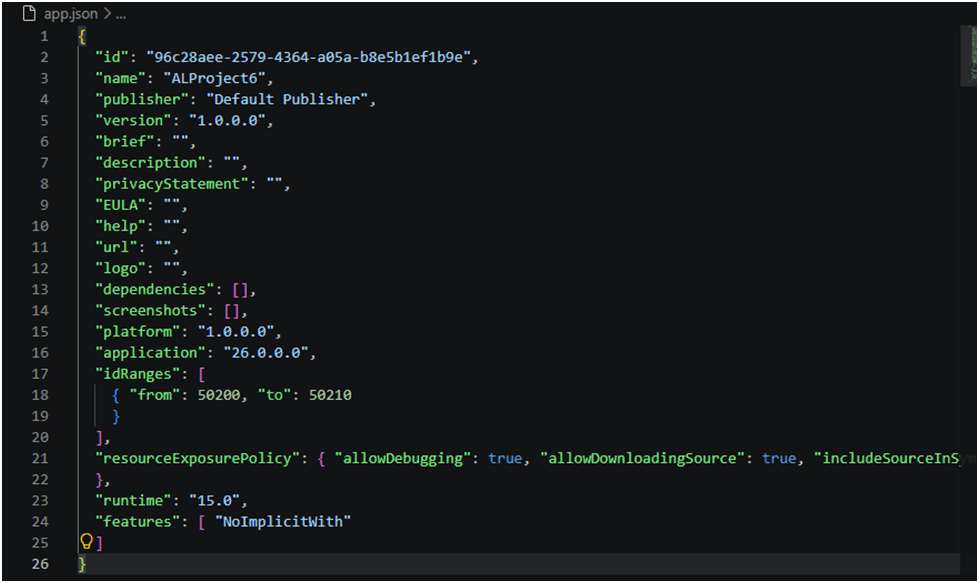
{
  "id": "96c28aee-2579-4364-a05a-b8e5b1ef1b9e",
  "name": "ALProject6",
  "publisher": "Default Publisher",
  "version": "1.0.0.0",
  "brief": "",
  "description": "",
  "privacyStatement": "",
  "EULA": "",
  "help": "",
  "url": "",
  "logo": "",
  "dependencies": [],
  "screenshots": [],
  "platform": "1.0.0.0",
  "application": "26.0.0.0",
  "idRanges": [
    {
      "from": 50200,
      "to": 50210
    }
  ],
  "resourceExposurePolicy": {
    "allowDebugging": true,
    "allowDownloadingSource": true,
    "includeSourceInSymbolFile": true
  },
  "runtime": "15.0",
  "features": [
    "NoImplicitWith"
  ]
}
💡 Note: The allowHttpClientRequests setting must be set to true, otherwise you will receive a runtime error when trying to make HTTP calls. In Business Central SaaS, this is controlled per tenant and must also be enabled in Extension Management.
Step 2: Create the Setup Table
We will create a Setup Table to securely store the Claude API key, the model name, maximum token limit, and the API endpoint URL. This gives administrators a central place to configure the integration without hardcoding values in code.
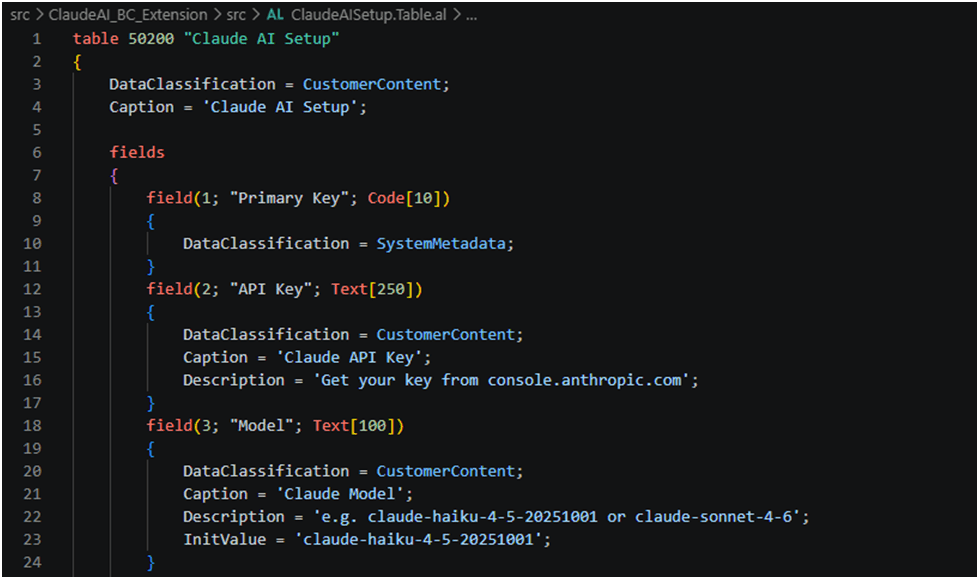
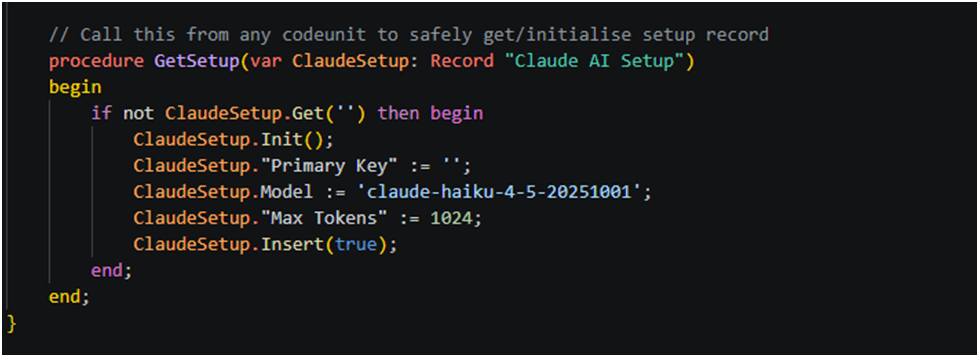
table 50200 "Claude AI Setup"
{
    DataClassification = CustomerContent;
    Caption = 'Claude AI Setup';

    fields
    {
        field(1; "Primary Key"; Code[10])
        {
            DataClassification = SystemMetadata;
        }
        field(2; "API Key"; Text[250])
        {
            DataClassification = CustomerContent;
            Caption = 'Claude API Key';
            Description = 'Get your key from console.anthropic.com';
        }
        field(3; "Model"; Text[100])
        {
            DataClassification = CustomerContent;
            Caption = 'Claude Model';
            Description = 'e.g. claude-haiku-4-5-20251001 or claude-sonnet-4-6';
            InitValue = 'claude-haiku-4-5-20251001';
        }
        field(4; "Max Tokens"; Integer)
        {
            DataClassification = CustomerContent;
            Caption = 'Max Response Tokens';
            InitValue = 1024;
            MinValue = 100;
            MaxValue = 4096;
        }
        field(5; "Enabled"; Boolean)
        {
            DataClassification = CustomerContent;
            Caption = 'Enabled';
        }
    }

    keys
    {
        key(Key1; "Primary Key") { Clustered = true; }
    }
// Call this from any codeunit to safely get/initialise setup record
procedure GetSetup(var ClaudeSetup: Record "Claude AI Setup")
begin
if not ClaudeSetup.Get('') then begin
ClaudeSetup.Init();
ClaudeSetup."Primary Key" := '';
ClaudeSetup.Model := 'claude-haiku-4-5-20251001';
ClaudeSetup."Max Tokens" := 1024;
ClaudeSetup.Insert(true);
end;
end;
}Step 3: Create the Setup Page
Next, we create a Card Page so administrators can enter the API key and configuration values directly in Business Central without needing developer access. This page is linked to the Setup Table created in Step 2.
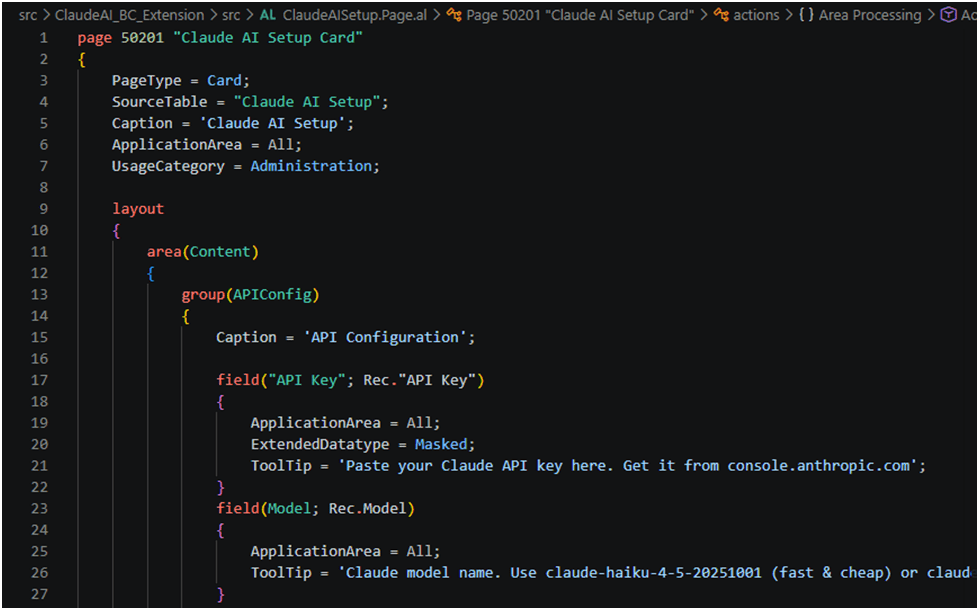
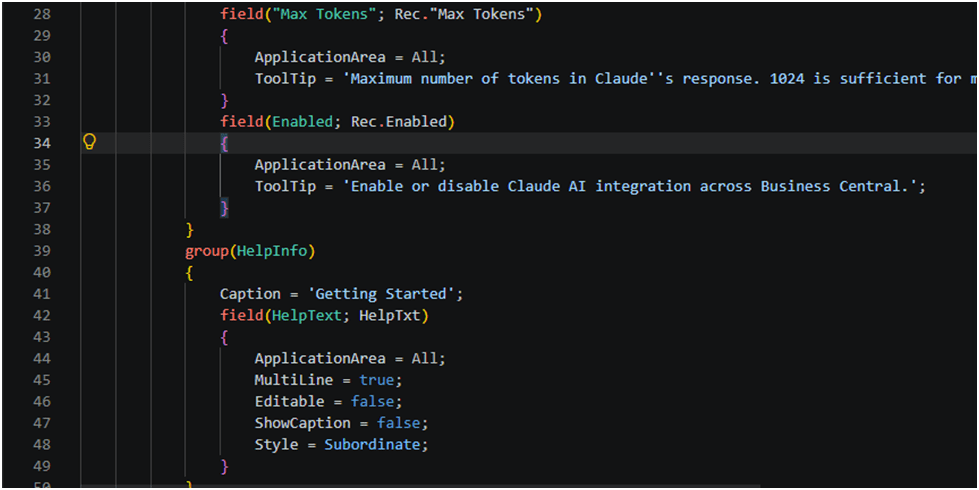
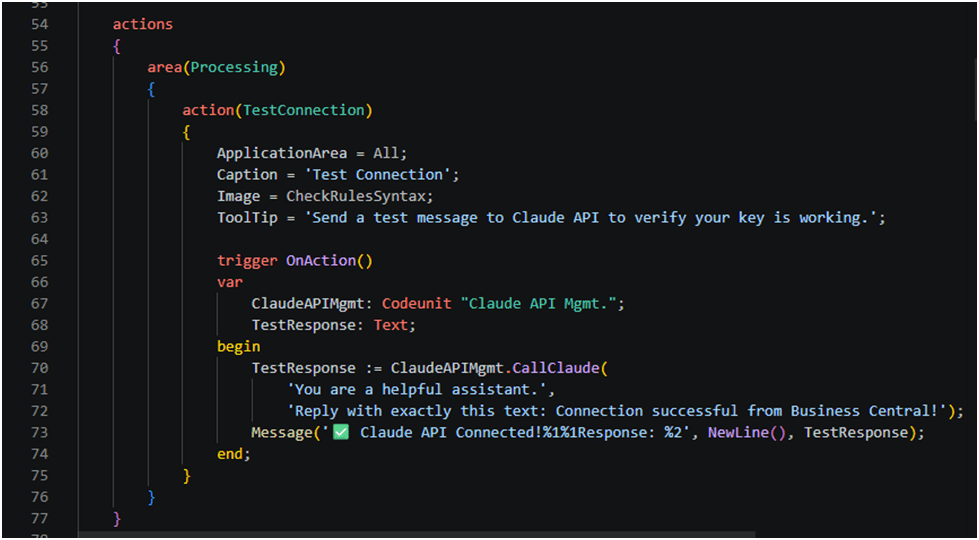
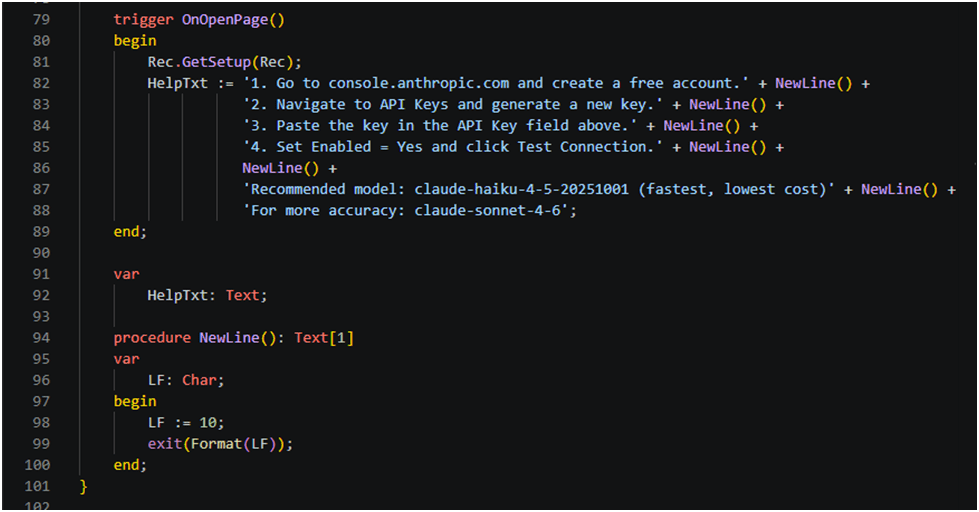
page 50201 "Claude AI Setup Card"
{
    PageType = Card;
    SourceTable = "Claude AI Setup";
    Caption = 'Claude AI Setup';
    ApplicationArea = All;
    UsageCategory = Administration;

    layout
    {
        area(Content)
        {
            group(APIConfig)
            {
                Caption = 'API Configuration';

                field("API Key"; Rec."API Key")
                {
                    ApplicationArea = All;
                    ExtendedDatatype = Masked;
                    ToolTip = 'Paste your Claude API key here. Get it from console.anthropic.com';
                }
                field(Model; Rec.Model)
                {
                    ApplicationArea = All;
                    ToolTip = 'Claude model name. Use claude-haiku-4-5-20251001 (fast & cheap) or claude-sonnet-4-6 (more capable).';
                }
                field("Max Tokens"; Rec."Max Tokens")
                {
                    ApplicationArea = All;
                    ToolTip = 'Maximum number of tokens in Claude''s response. 1024 is sufficient for most sales analysis tasks.';
                }
                field(Enabled; Rec.Enabled)
                {
                    ApplicationArea = All;
                    ToolTip = 'Enable or disable Claude AI integration across Business Central.';
                }
            }
            group(HelpInfo)
            {
                Caption = 'Getting Started';
                field(HelpText; HelpTxt)
                {
                    ApplicationArea = All;
                    MultiLine = true;
                    Editable = false;
                    ShowCaption = false;
                    Style = Subordinate;
                }
            }
        }
    }

    actions
    {
        area(Processing)
        {
            action(TestConnection)
            {
                ApplicationArea = All;
                Caption = 'Test Connection';
                Image = CheckRulesSyntax;
                ToolTip = 'Send a test message to Claude API to verify your key is working.';

                trigger OnAction()
                var
                    ClaudeAPIMgmt: Codeunit "Claude API Mgmt.";
                    TestResponse: Text;
                begin
                    TestResponse := ClaudeAPIMgmt.CallClaude(
                        'You are a helpful assistant.',
                        'Reply with exactly this text: Connection successful from Business Central!');
                    Message('✅ Claude API Connected!%1%1Response: %2', NewLine(), TestResponse);
                end;
            }
        }
    }

    trigger OnOpenPage()
    begin
        Rec.GetSetup(Rec);
        HelpTxt := '1. Go to console.anthropic.com and create a free account.' + NewLine() +
                   '2. Navigate to API Keys and generate a new key.' + NewLine() +
                   '3. Paste the key in the API Key field above.' + NewLine() +
                   '4. Set Enabled = Yes and click Test Connection.' + NewLine() +
                   NewLine() +
                   'Recommended model: claude-haiku-4-5-20251001 (fastest, lowest cost)' + NewLine() +
                   'For more accuracy: claude-sonnet-4-6';
    end;

    var
        HelpTxt: Text;

    procedure NewLine(): Text[1]
    var
        LF: Char;
    begin
        LF := 10;
        exit(Format(LF));
    end;
}
💡 Note: Once this page is published, you can search for ‘Claude Setup’ in Business Central and enter your API Key before testing the integration.
Step 4: Create the ClaudeAPIHelperCodeunit
This is the core of the integration. We create a Codeunit named ClaudeAPIHelper that contains three main procedures: BuildRequestJson to construct the API request body, CallClaudeAPI to send the HTTP request, and ParseResponse to extract the AI text from the JSON response.
Below is the Codeunit header and the permissions it requires to read the Setup Table and make outbound HTTP calls:
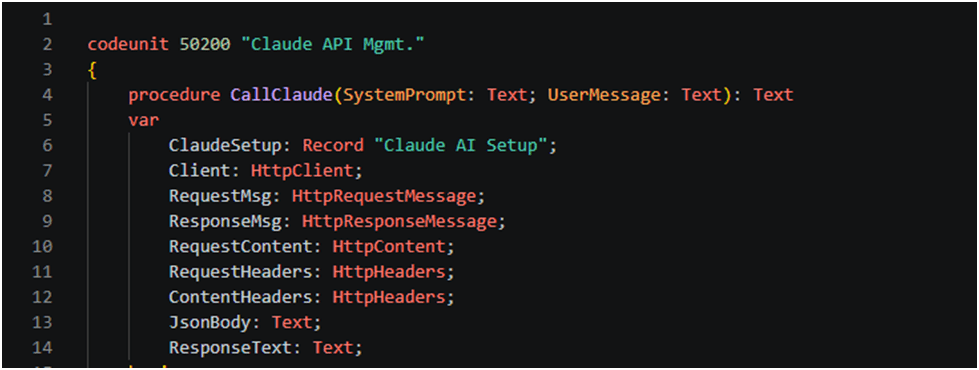
codeunit 50100 ClaudeAPIHelper
{
    Permissions =
tabledata "Claude Setup" = R;

 var
        ClaudeSetup: Record "Claude AI Setup";
        Client: HttpClient;
        RequestMsg: HttpRequestMessage;
        ResponseMsg: HttpResponseMessage;
        RequestContent: HttpContent;
        RequestHeaders: HttpHeaders;
        ContentHeaders: HttpHeaders;
        JsonBody: Text;
        ResponseText: Text;
}
Step 5: Build the JSON Request (BuildRequestJson Procedure)
The BuildRequestJson procedure constructs the JSON body that is sent to the Anthropic API. It reads the model and max tokens from the Setup Table and formats the prompt using the messages array structure required by the Claude API.
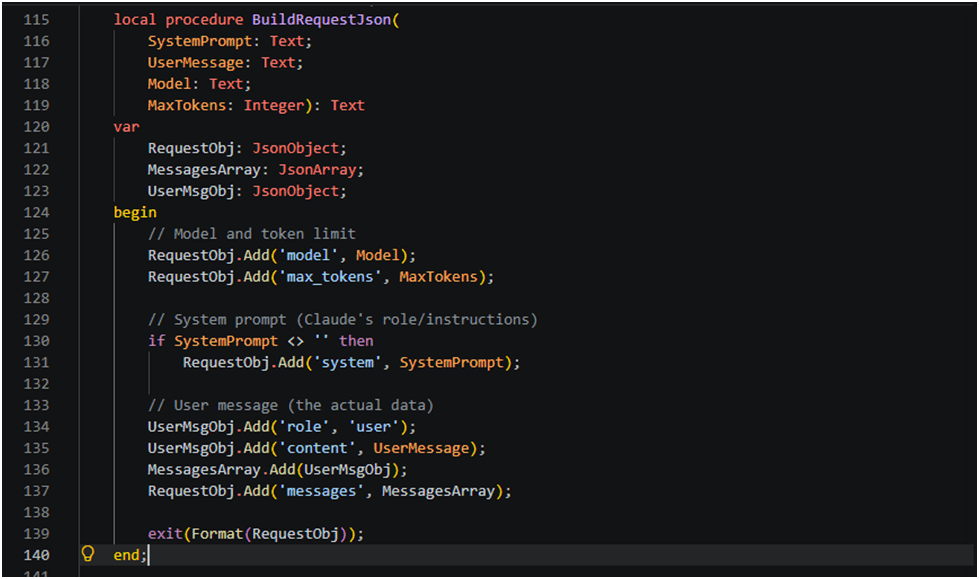
local procedure BuildRequestJson(
        SystemPrompt: Text;
        UserMessage: Text;
        Model: Text;
        MaxTokens: Integer): Text
    var
        RequestObj: JsonObject;
        MessagesArray: JsonArray;
        UserMsgObj: JsonObject;
    begin
        // Model and token limit
        RequestObj.Add('model', Model);
        RequestObj.Add('max_tokens', MaxTokens);

        // System prompt (Claude's role/instructions)
        if SystemPrompt<> '' then
            RequestObj.Add('system', SystemPrompt);

        // User message (the actual data)
        UserMsgObj.Add('role', 'user');
        UserMsgObj.Add('content', UserMessage);
        MessagesArray.Add(UserMsgObj);
        RequestObj.Add('messages', MessagesArray);

        exit(Format(RequestObj));
    end;
Step 6: Call the Claude API (CallClaudeAPI Procedure)
The CallClaudeAPI procedure sends the HTTP POST request to the Anthropic API endpoint. It reads the API Key from the Setup Table, sets the required headers (x-api-key, anthropic-version, Content-Type), and submits the request body built in Step 5.
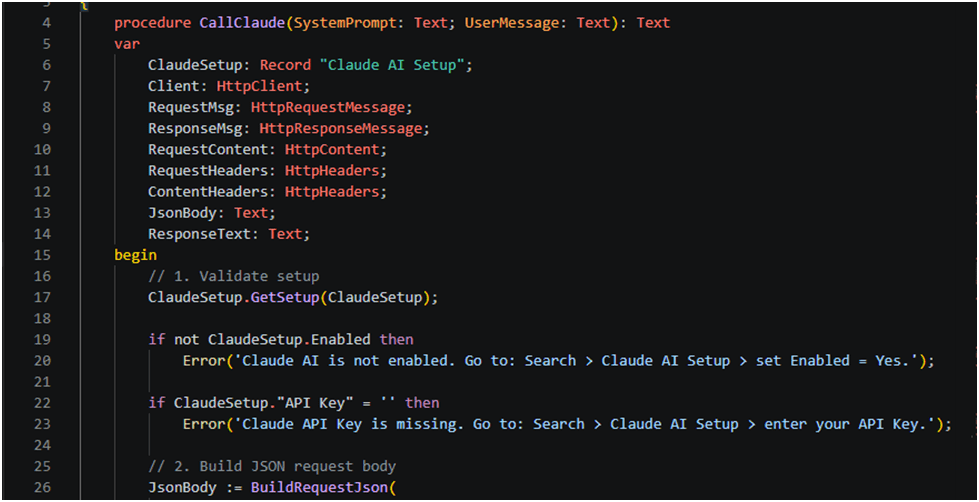
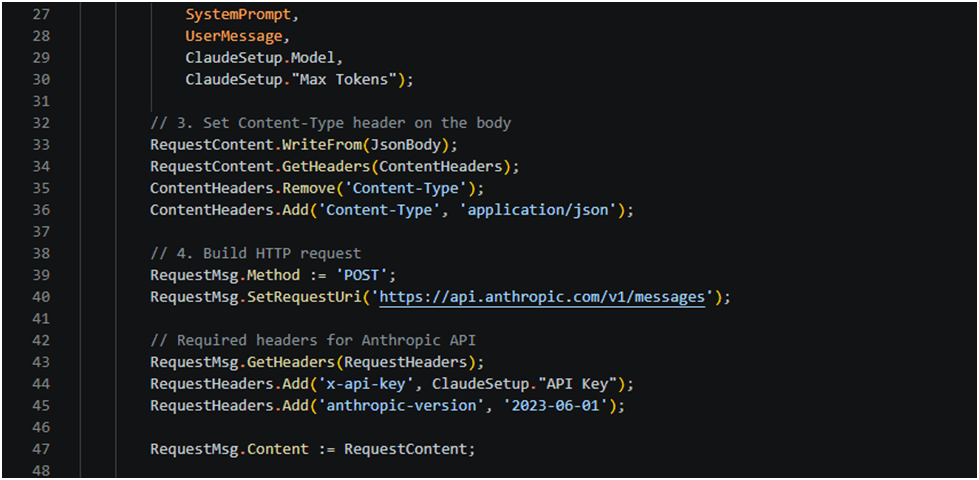
procedure CallClaude(SystemPrompt: Text; UserMessage: Text): Text
    var
        ClaudeSetup: Record "Claude AI Setup";
        Client: HttpClient;
        RequestMsg: HttpRequestMessage;
        ResponseMsg: HttpResponseMessage;
        RequestContent: HttpContent;
        RequestHeaders: HttpHeaders;
        ContentHeaders: HttpHeaders;
        JsonBody: Text;
        ResponseText: Text;
    begin
        // 1. Validate setup
        ClaudeSetup.GetSetup(ClaudeSetup);

        if not ClaudeSetup.Enabled then
            Error('Claude AI is not enabled. Go to: Search > Claude AI Setup > set Enabled = Yes.');

        if ClaudeSetup."API Key" = '' then
            Error('Claude API Key is missing. Go to: Search > Claude AI Setup > enter your API Key.');

        // 2. Build JSON request body
        JsonBody := BuildRequestJson(
            SystemPrompt,
            UserMessage,
            ClaudeSetup.Model,
            ClaudeSetup."Max Tokens");

        // 3. Set Content-Type header on the body
        RequestContent.WriteFrom(JsonBody);
        RequestContent.GetHeaders(ContentHeaders);
        ContentHeaders.Remove('Content-Type');
        ContentHeaders.Add('Content-Type', 'application/json');

        // 4. Build HTTP request
        RequestMsg.Method := 'POST';
        RequestMsg.SetRequestUri('https://api.anthropic.com/v1/messages');

        // Required headers for Anthropic API
        RequestMsg.GetHeaders(RequestHeaders);
        RequestHeaders.Add('x-api-key', ClaudeSetup."API Key");
        RequestHeaders.Add('anthropic-version', '2023-06-01');

        RequestMsg.Content := RequestContent;

        // 5. Send request
        if not Client.Send(RequestMsg, ResponseMsg) then
            Error('Cannot reach Claude API. Check your internet connection or firewall settings.');

        // 6. Read response
        ResponseMsg.Content.ReadAs(ResponseText);

        // 7. Handle HTTP errors
        if not ResponseMsg.IsSuccessStatusCode() then
            HandleAPIError(ResponseMsg.HttpStatusCode(), ResponseText);

        // 8. Parse and return the text response
        exit(ParseClaudeResponse(ResponseText));
    end;
Step 7: Parse the API Response (ParseResponse Procedure)
The Claude API returns a JSON response with a nested structure. The ParseResponse procedure navigates this structure to extract the actual text content from the response. The response follows the pattern: content array -> first item -> text field.
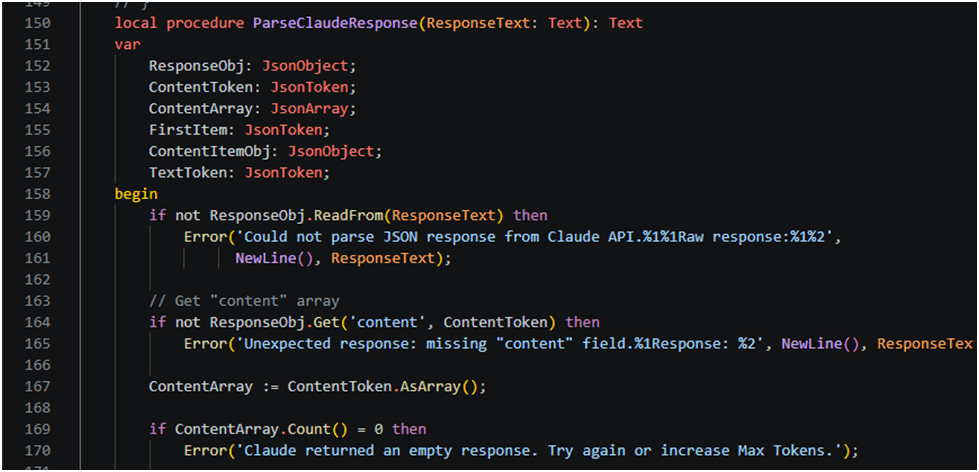
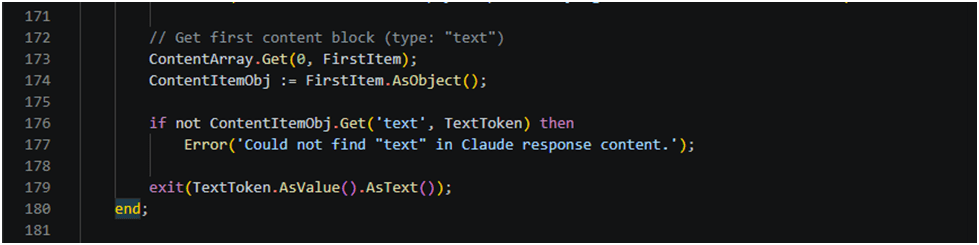
local procedure ParseClaudeResponse(ResponseText: Text): Text
    var
        ResponseObj: JsonObject;
        ContentToken: JsonToken;
        ContentArray: JsonArray;
        FirstItem: JsonToken;
        ContentItemObj: JsonObject;
        TextToken: JsonToken;
    begin
        if not ResponseObj.ReadFrom(ResponseText) then
            Error('Could not parse JSON response from Claude API.%1%1Raw response:%1%2',
                  NewLine(), ResponseText);

        // Get "content" array
        if not ResponseObj.Get('content', ContentToken) then
            Error('Unexpected response: missing "content" field.%1Response: %2', NewLine(), ResponseText);

        ContentArray := ContentToken.AsArray();

        if ContentArray.Count() = 0 then
            Error('Claude returned an empty response. Try again or increase Max Tokens.');

        // Get first content block (type: "text")
        ContentArray.Get(0, FirstItem);
        ContentItemObj := FirstItem.AsObject();

        if not ContentItemObj.Get('text', TextToken) then
            Error('Could not find "text" in Claude response content.');

        exit(TextToken.AsValue().AsText());
    end;
Step 8: Build Sales Order Prompt and Error Handling
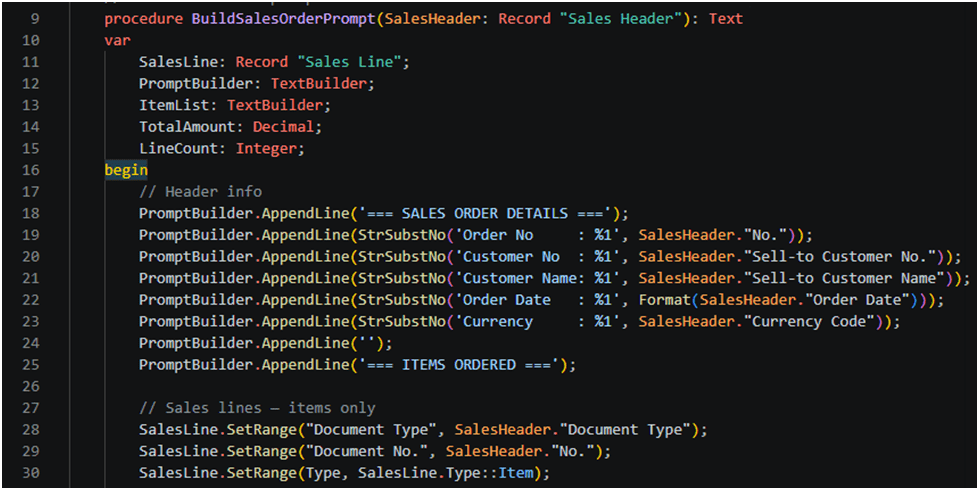
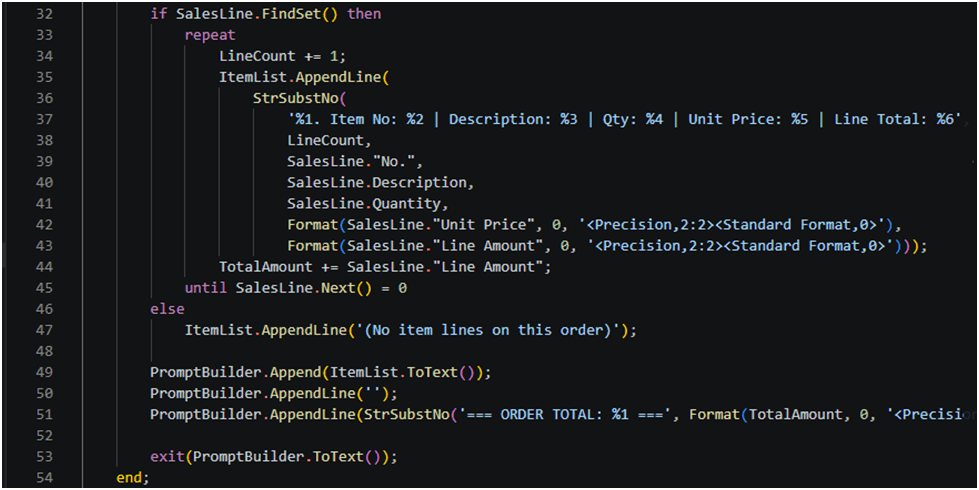
procedure BuildSalesOrderPrompt(SalesHeader: Record "Sales Header"): Text
    var
        SalesLine: Record "Sales Line";
        PromptBuilder: TextBuilder;
        ItemList: TextBuilder;
        TotalAmount: Decimal;
        LineCount: Integer;
    begin
        // Header info
        PromptBuilder.AppendLine('=== SALES ORDER DETAILS ===');
        PromptBuilder.AppendLine(StrSubstNo('Order No     : %1', SalesHeader."No."));
        PromptBuilder.AppendLine(StrSubstNo('Customer No  : %1', SalesHeader."Sell-to Customer No."));
        PromptBuilder.AppendLine(StrSubstNo('Customer Name: %1', SalesHeader."Sell-to Customer Name"));
        PromptBuilder.AppendLine(StrSubstNo('Order Date   : %1', Format(SalesHeader."Order Date")));
        PromptBuilder.AppendLine(StrSubstNo('Currency     : %1', SalesHeader."Currency Code"));
        PromptBuilder.AppendLine('');
        PromptBuilder.AppendLine('=== ITEMS ORDERED ===');

        // Sales lines — items only
        SalesLine.SetRange("Document Type", SalesHeader."Document Type");
        SalesLine.SetRange("Document No.", SalesHeader."No.");
        SalesLine.SetRange(Type, SalesLine.Type::Item);

        if SalesLine.FindSet() then
            repeat
                LineCount += 1;
                ItemList.AppendLine(
                    StrSubstNo(
                        '%1. Item No: %2 | Description: %3 | Qty: %4 | Unit Price: %5 | Line Total: %6',
                        LineCount,
                        SalesLine."No.",
                        SalesLine.Description,
                        SalesLine.Quantity,
                        Format(SalesLine."Unit Price", 0, '<Precision,2:2><Standard Format,0>'),
                        Format(SalesLine."Line Amount", 0, '<Precision,2:2><Standard Format,0>')));
                TotalAmount += SalesLine."Line Amount";
            until SalesLine.Next() = 0
        else
            ItemList.AppendLine('(No item lines on this order)');

        PromptBuilder.Append(ItemList.ToText());
        PromptBuilder.AppendLine('');
        PromptBuilder.AppendLine(StrSubstNo('=== ORDER TOTAL: %1 ===', Format(TotalAmount, 0, '<Precision,2:2><Standard Format,0>')));

        exit(PromptBuilder.ToText());
    end;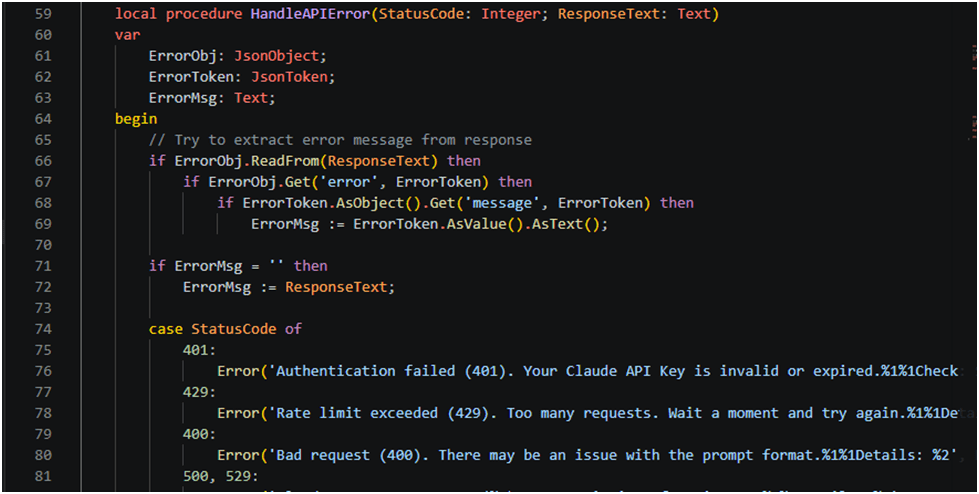
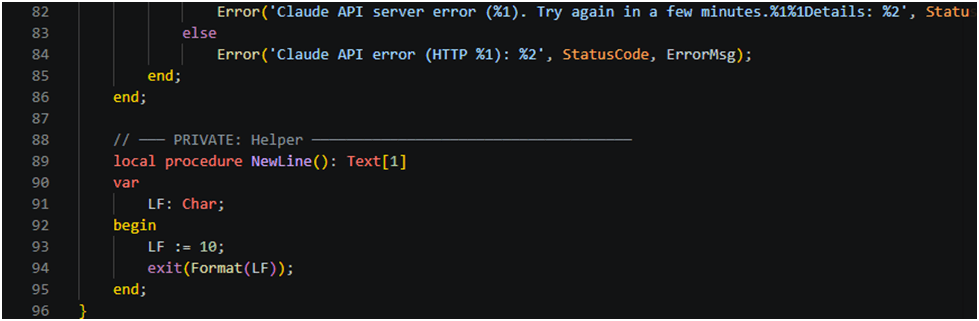
local procedure HandleAPIError(StatusCode: Integer; ResponseText: Text)
    var
        ErrorObj: JsonObject;
        ErrorToken: JsonToken;
        ErrorMsg: Text;
    begin
        // Try to extract error message from response
        if ErrorObj.ReadFrom(ResponseText) then
            if ErrorObj.Get('error', ErrorToken) then
                if ErrorToken.AsObject().Get('message', ErrorToken) then
                    ErrorMsg := ErrorToken.AsValue().AsText();

        if ErrorMsg = '' then
            ErrorMsg := ResponseText;

        case StatusCode of
            401:
                Error('Authentication failed (401). Your Claude API Key is invalid or expired.%1%1Check: Search > Claude AI Setup', NewLine());
            429:
                Error('Rate limit exceeded (429). Too many requests. Wait a moment and try again.%1%1Details: %2', NewLine(), ErrorMsg);
            400:
                Error('Bad request (400). There may be an issue with the prompt format.%1%1Details: %2', NewLine(), ErrorMsg);
            500, 529:
                Error('Claude API server error (%1). Try again in a few minutes.%1%1Details: %2', StatusCode, NewLine(), ErrorMsg);
            else
                Error('Claude API error (HTTP %1): %2', StatusCode, ErrorMsg);
        end;
    end;

    // ─── PRIVATE: Helper ─────────────────────────────────────
    local procedure NewLine(): Text[1]
    var
        LF: Char;
    begin
        LF := 10;
        exit(Format(LF));
    end;
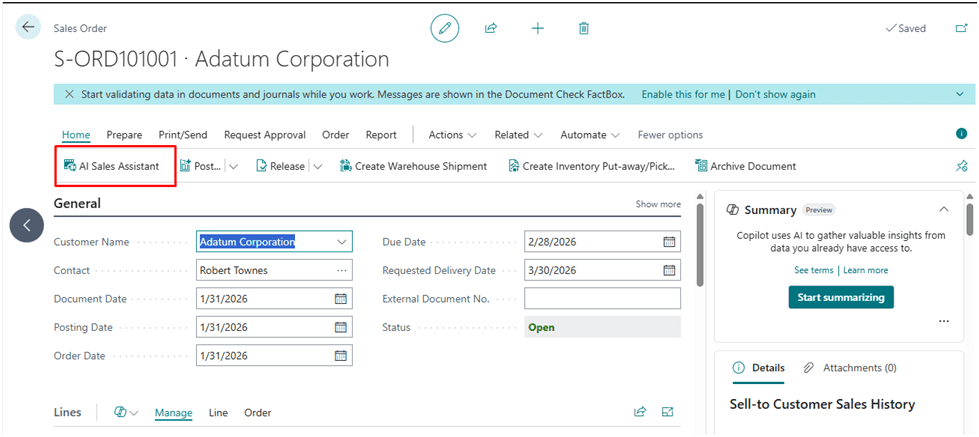
Step 9: Add a Test Action to the Sales Order Page
To test the integration, we add an action button to the standard Sales Order page. When the user clicks the action, it prompts for a question, sends it to Claude AI, and shows the response in a message dialog. This confirms the full end-to-end integration is working correctly.
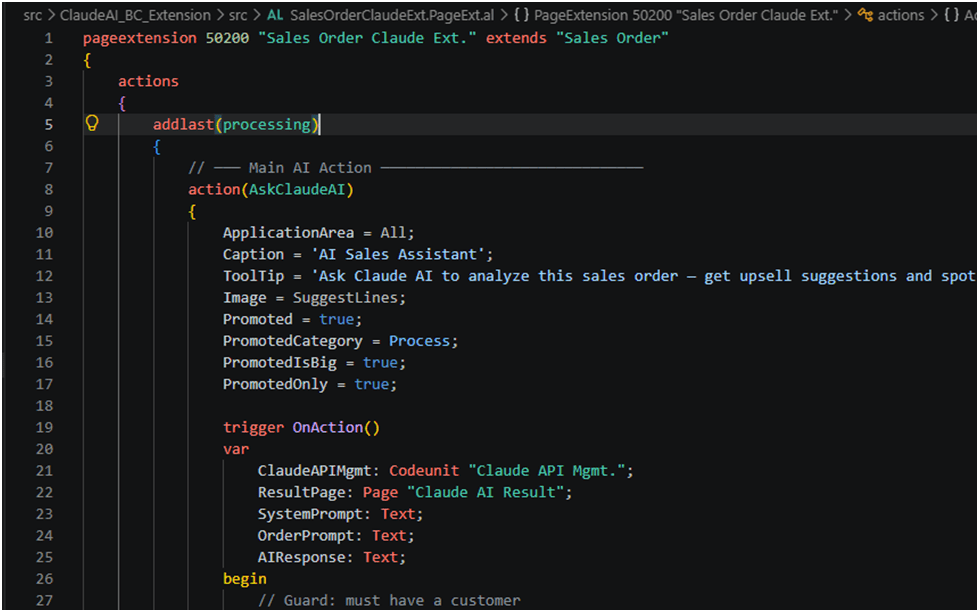
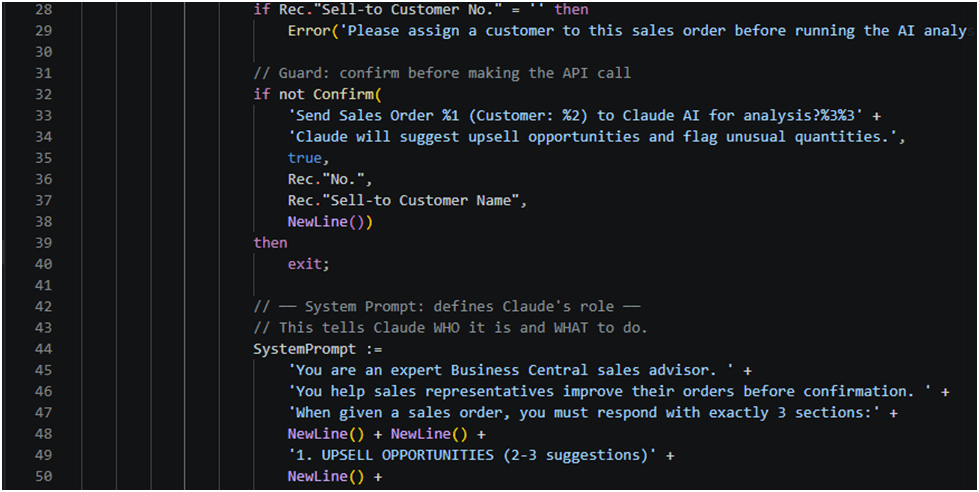
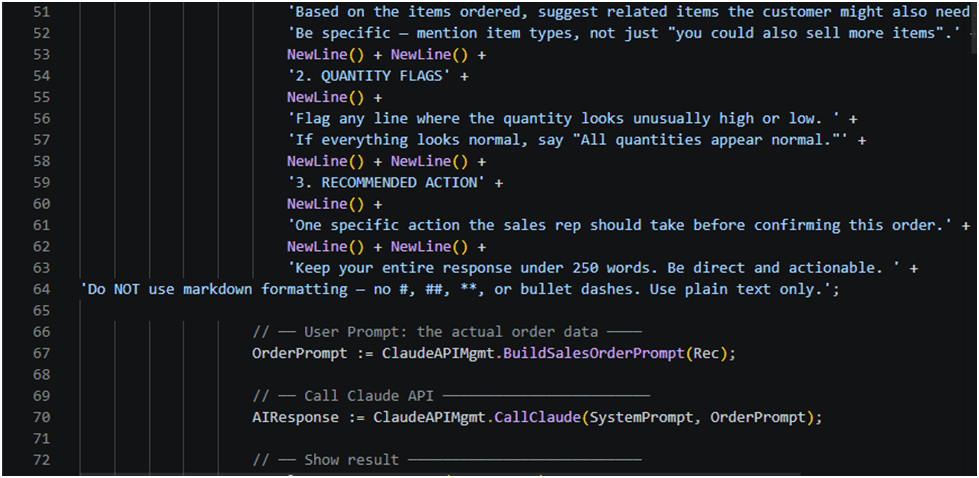
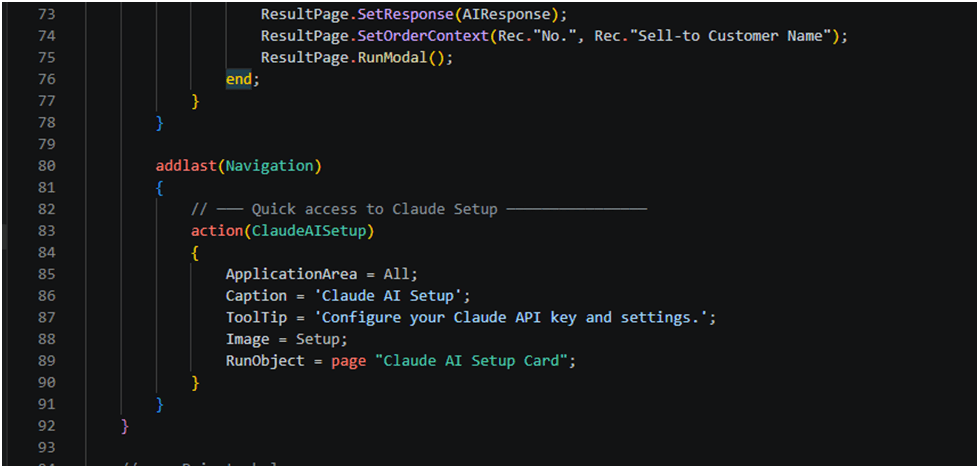
pageextension 50200 "Sales Order Claude Ext." extends "Sales Order"
{
    actions
    {
        addlast(processing)
        {
            // ─── Main AI Action ──────────────────────────────
            action(AskClaudeAI)
            {
                ApplicationArea = All;
                Caption = 'AI Sales Assistant';
                ToolTip = 'Ask Claude AI to analyze this sales order — get upsell suggestions and spot unusual quantities.';
                Image = SuggestLines;
                Promoted = true;
                PromotedCategory = Process;
                PromotedIsBig = true;
                PromotedOnly = true;

                trigger OnAction()
                var
                    ClaudeAPIMgmt: Codeunit "Claude API Mgmt.";
                    ResultPage: Page "Claude AI Result";
                    SystemPrompt: Text;
                    OrderPrompt: Text;
                    AIResponse: Text;
                begin
                    // Guard: must have a customer
                    if Rec."Sell-to Customer No." = '' then
                        Error('Please assign a customer to this sales order before running the AI analysis.');

                    // Guard: confirm before making the API call
                    if not Confirm(
                        'Send Sales Order %1 (Customer: %2) to Claude AI for analysis?%3%3' +
                        'Claude will suggest upsell opportunities and flag unusual quantities.',
                        true,
                        Rec."No.",
                        Rec."Sell-to Customer Name",
                        NewLine())
                    then
                        exit;

                    // ── System Prompt: defines Claude's role ──
                    // This tells Claude WHO it is and WHAT to do.
                    SystemPrompt :=
                        'You are an expert Business Central sales advisor. ' +
                        'You help sales representatives improve their orders before confirmation. ' +
                        'When given a sales order, you must respond with exactly 3 sections:' +
                        NewLine() + NewLine() +
                        '1. UPSELL OPPORTUNITIES (2-3 suggestions)' +
                        NewLine() +
                        'Based on the items ordered, suggest related items the customer might also need. ' +
                        'Be specific — mention item types, not just "you could also sell more items".' +
                        NewLine() + NewLine() +
                        '2. QUANTITY FLAGS' +
                        NewLine() +
                        'Flag any line where the quantity looks unusually high or low. ' +
                        'If everything looks normal, say "All quantities appear normal."' +
                        NewLine() + NewLine() +
                        '3. RECOMMENDED ACTION' +
                        NewLine() +
                        'One specific action the sales rep should take before confirming this order.' +
                        NewLine() + NewLine() +
                        'Keep your entire response under 250 words. Be direct and actionable. ' +
'Do NOT use markdown formatting — no #, ##, **, or bullet dashes. Use plain text only.';

                    // ── User Prompt: the actual order data ────
                    OrderPrompt := ClaudeAPIMgmt.BuildSalesOrderPrompt(Rec);

                    // ── Call Claude API ────────────────────────
                    AIResponse := ClaudeAPIMgmt.CallClaude(SystemPrompt, OrderPrompt);

                    // ── Show result ───────────────────────────
                    ResultPage.SetResponse(AIResponse);
                    ResultPage.SetOrderContext(Rec."No.", Rec."Sell-to Customer Name");
                    ResultPage.RunModal();
                end;
            }
        }

        addlast(Navigation)
        {
            // ─── Quick access to Claude Setup ────────────────
            action(ClaudeAISetup)
            {
                ApplicationArea = All;
                Caption = 'Claude AI Setup';
                ToolTip = 'Configure your Claude API key and settings.';
                Image = Setup;
                RunObject = page "Claude AI Setup Card";
            }
        }
    }

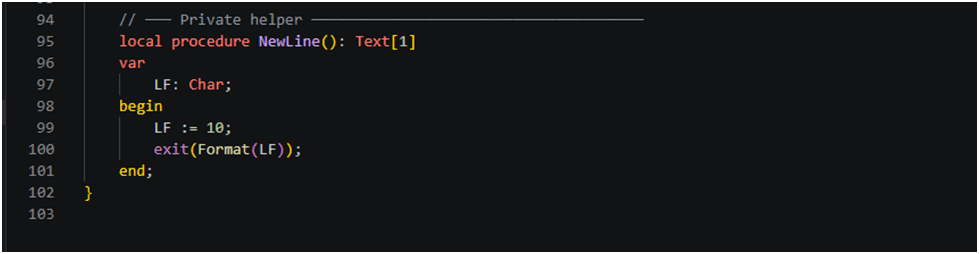
    // ─── Private helper ──────────────────────────────────────
    local procedure NewLine(): Text[1]
    var
        LF: Char;
    begin
        LF := 10;
        exit(Format(LF));
    end;
}
Step 10: Deploy and Test in Business Central
Once all the AL objects are ready, follow these steps to deploy and test your integration:
1. Press F5 in VS Code to publish the extension to your Business Central environment.
2. Search for ‘Claude Setup’ in Business Central and enter your Anthropic API Key.
3. Open any Sales Order — you will see the ‘Ask Claude AI’ button in the action bar.
4. Click ‘Ask Claude AI’ — Business Central will send the prompt to Claude and display the response.
5. Verify the response appears in a message dialog box within a few seconds.
Conclusion
In this blog, we successfully built a complete Claude AI integration with Microsoft Dynamics 365 Business Central using AL programming. We created a Setup Table to store API credentials securely, a Codeunit to handle HTTP requests and JSON parsing, and a test action on the Customer Card to demonstrate the live integration.
This pattern can be extended in many ways: you can create custom prompts based on any BC record (Sales Orders, Items, Vendors), build AI-assisted data entry, generate summaries, or even create intelligent approval recommendations — all powered by Claude AI directly inside Business Central.
This approach gives Business Central customers access to state-of-the-art AI capabilities without any external middleware or expensive add-ons. The complete AL source code used in this blog is available in the video description on our YouTube channel.
Stay Connected with BizCentralOrbit
To get more such useful information, please follow our LinkedIn page and you can also subscribe our you tube page.
YouTube Link: https://www.youtube.com/@bizcentralorbit
LinkedIn Link: https://www.linkedin.com/company/bizcentralorbit/posts/?feedView=all
If you want to book a 1-to-1 live session with any of our expert consultants then click the link: https://bizcentralorbit.com/#One-to
If you want to read next blog “How to Allow Posted Document Modification in Microsoft Dynamics 365 Business Central” then click the link: https://bizcentralorbit.com/how-to-allow-posted-document-modification-in-microsoft-dynamics-365-business-central/
If you want a Tutorial videos of “Customer Card – Business Central” then click the link: https://www.youtube.com/watch?v=SEls0uKWsdk&list=PLh-SKFWO2XjLyj_s55NfeKP_XBoQ1hWR7
Raise a support ticket instantly by clicking the link: https://bizcentralorbit.com/contact-us/
Well summarized and professionally presented
The VIP treatment here is legit. I feel like a valued player every time I log in. If you want a premium experience, pera789viplogin is the way to go.
Super addictive games and the daily rewards keep me coming back. I have told all my friends to join phjilii already!
I have been exploring different betting sites for a while now and finally found a home here. The welcome bonuses are genuinely fair and the payment process feels completely secure. Love how easy it is to navigate between slots and live tables. Keep up the amazing work team! mamubetcasino
Honestly, this site is so easy to navigate. I had a smooth experience logging in and the games load super fast. Definitely my go-to now! jili31login