
How to Allow Posted Document Modification in Microsoft Dynamics 365 Business Central
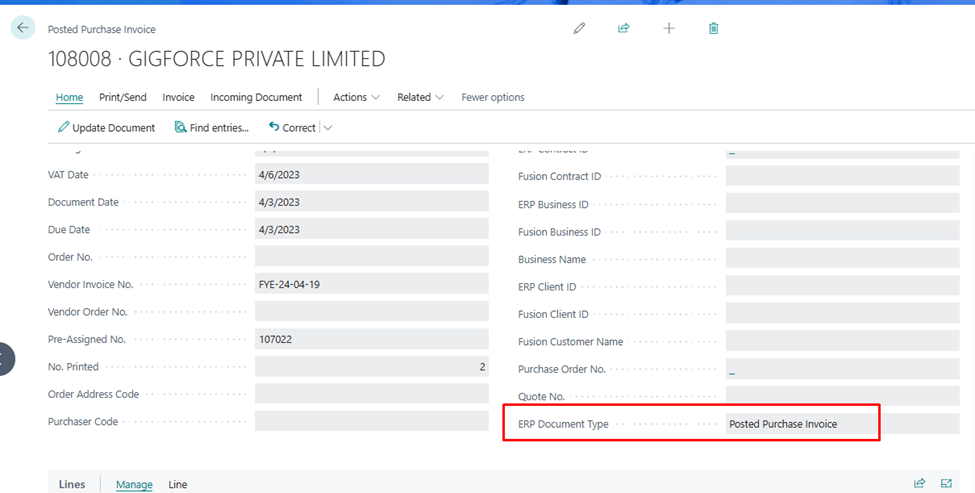
In Microsoft Dynamics 365 Business Central, posted documents are generally not meant to be modified directly. This is because posted entries are considered finalized records, and Business Central follows strict control to maintain data accuracy, auditability, and financial integrity.
However, in some real business scenarios, an organization may have a valid requirement to modify a field, update certain information, or insert data into a custom field even after posting. In such cases, developers cannot simply change the posted document from the page or table directly. Instead, the modification must be done carefully by using AL code and by handling permissions properly inside a codeunit.
Example – A company has created a custom field named “ERP Document Type” in the Posted Purchase Invoice table. After some purchase invoices were already posted, the business realized that this field also needs to store a value for old posted documents, so that the data can be used in reports, filtering, or integration scenarios.
Since Business Central does not allow direct modification of posted documents in normal conditions, we must handle this requirement through AL development. For this, we write logic inside a codeunit, assign the required permission on the posted purchase invoice table, and then update the custom field programmatically in a safe and controlled manner.
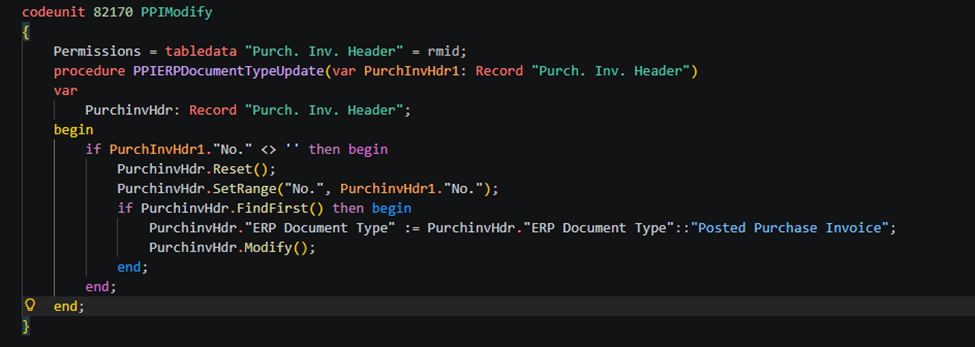
codeunit 82170 PPIModify
{
    Permissions = tabledata "Purch. Inv. Header" = rmid;
    procedure PPIERPDocumentTypeUpdate(var PurchInvHdr1: Record "Purch. Inv. Header")
    var
        PurchinvHdr: Record "Purch. Inv. Header";
    begin
        if PurchInvHdr1."No." <> '' then begin
            PurchinvHdr.Reset();
            PurchinvHdr.SetRange("No.", PurchinvHdr1."No.");
            if PurchinvHdr.FindFirst() then begin
                PurchinvHdr."ERP Document Type" := PurchinvHdr."ERP Document Type"::"Posted Purchase Invoice";
                PurchinvHdr.Modify();
            end;
        end;
    end;
}
If you want to read next blog “Automating Customer Ledger Apply Entry/Knock‑Off in Business Central Using Excel Bulk Uploader” then click the link below:
If you want a Tutorial videos of “Feature Details for Business Central 2026 Release Wave 1 Public Preview” then click the link below:
link: https://www.youtube.com/watch?v=JMpiVtcRER0&list=PLh-SKFWO2XjJEig2WUtAN0r7wUh1CYgvC
Raise a support ticket instantly by clicking the link below:
explained in very informative way
very informative
Nice explanation
Clean explanation this will save a lot of time for report development